 Zapmio
Type on Android TV and Google TV with your phone's keyboard
Install a remote app on a phone that is on the same Wi-Fi as the TV, pair it with the code shown on screen, and tap the keyboard button when a search or login field is open. The phone's own keyboard then types straight into the TV, including voice typing and pasted passwords.
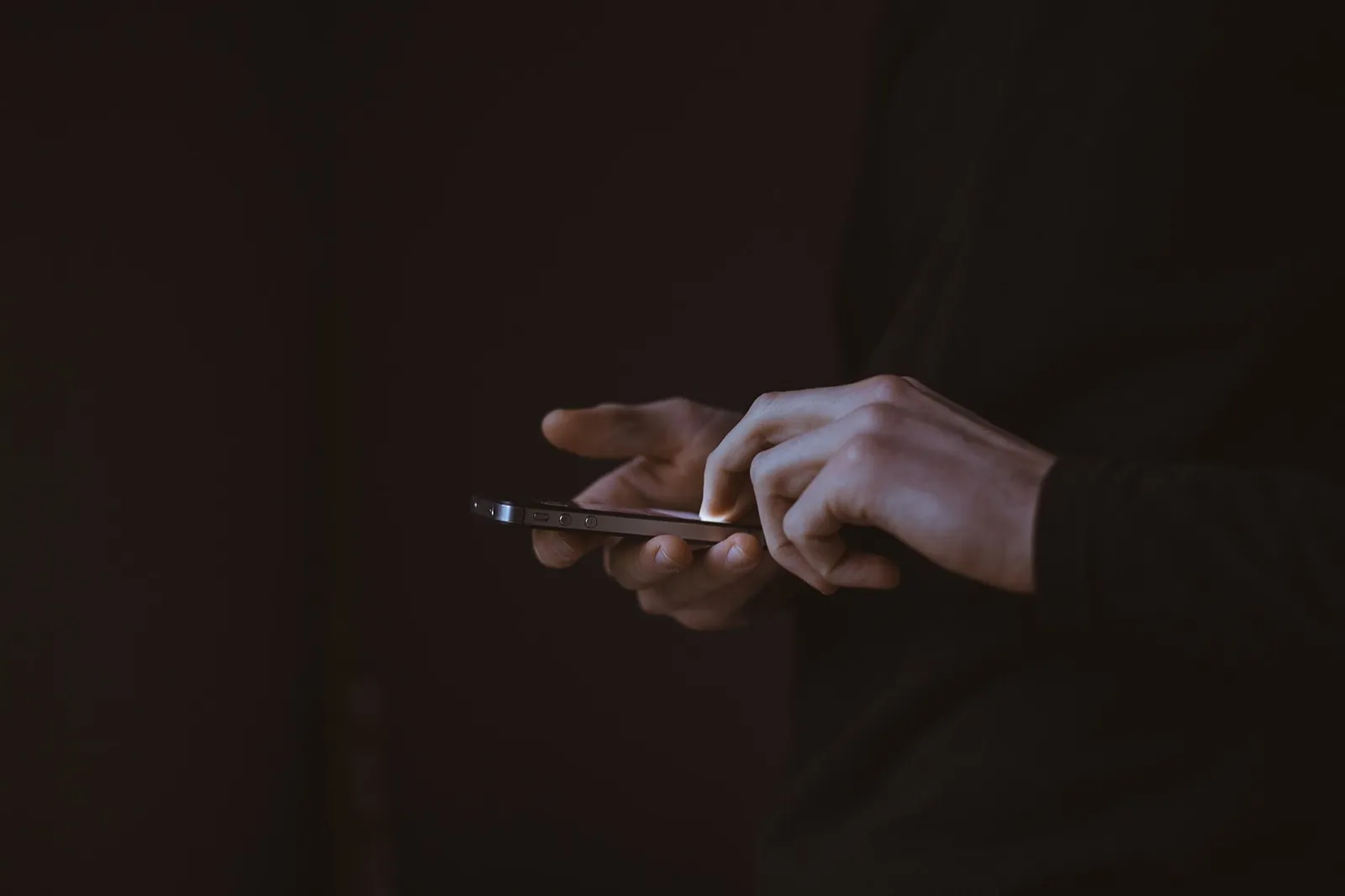
Set up the phone as a keyboard
- Connect the phone to the same Wi-Fi network as the TV.
- Open a remote app such as the Google TV app or Zapmio and pick your TV from the list.
- Type the code the TV shows on screen. You only do this once per phone.
- On the TV, open the search field in an app or a login screen.
- Tap the keyboard button in the app. Type, dictate or paste the text, then press Enter on the phone keyboard to send it.
Where phone typing works
Text from the phone goes into fields that use the TV's own Android keyboard. That covers the Google TV search bar, the Wi-Fi password screen, the Google account sign-in and the search in YouTube, the Play Store and most streaming apps.
A few apps draw their own letter grid on screen, Netflix among them. There the phone keyboard has nothing to type into, so use the arrows and OK in the remote app to pick the letters, or sign in from the phone with the code the app shows.
| Way to type | What you need | Good to know |
|---|---|---|
| Phone remote app | A phone on the same Wi-Fi, paired once | Voice typing and paste from a password manager work as on the phone |
| USB keyboard | A free USB port on the TV or streamer | Works as soon as it is plugged in on most models |
| Bluetooth keyboard | Pairing in the TV's settings | Needs a remote, phone or USB keyboard to reach the pairing menu |
| On-screen keyboard | Only the remote | Slow, one letter at a time with the arrows |
A keyboard that knows which field is open
Zapmio gives your phone a keyboard button next to the arrows and OK. It sees when a text field is active on the TV and opens the keyboard on the phone, so searches, email addresses and passwords are typed in seconds. It works with Google TV, Android TV and Chromecast with Google TV, has no ads, and up to six phones at home can use it. Try it free on your own TV.
Try it freeCancel anytime · Coming soon to Google PlayTry it freeCancel anytimePair a USB or Bluetooth keyboard
- For a USB keyboard, plug it or its small wireless receiver into a USB port on the TV. Chromecast with Google TV needs a USB-C hub with power passthrough.
- For Bluetooth, open Settings with the gear icon on the home screen and go to Remotes & Accessories → Pair remote or accessory. Menu names vary between models.
- Put the keyboard in pairing mode and select it when it appears in the list.
- Type in any field. Arrow keys and Enter also move around the home screen.
Related guides
- Google TV remote buttons and what each one does
- Use your phone as an Android TV remote
- How to use your phone as a TV remote
- Lost your TV remote? Here is what to do
Frequently asked questions
Why does the keyboard not appear on my phone?
The TV only sends a typing request when a text field is active. Open the search field on the TV first, then tap the keyboard button in the app. If it still does not appear, the app on the TV probably uses its own letter grid.
Can I paste a password from my phone?
Yes, in fields that use the Android TV keyboard. Copy it from your password manager, open the keyboard in the remote app and paste it into the text box.
Can several phones type on the same TV?
Yes. Each phone is paired once with the code the TV shows, and after that anyone in the household can open the keyboard from their own phone.